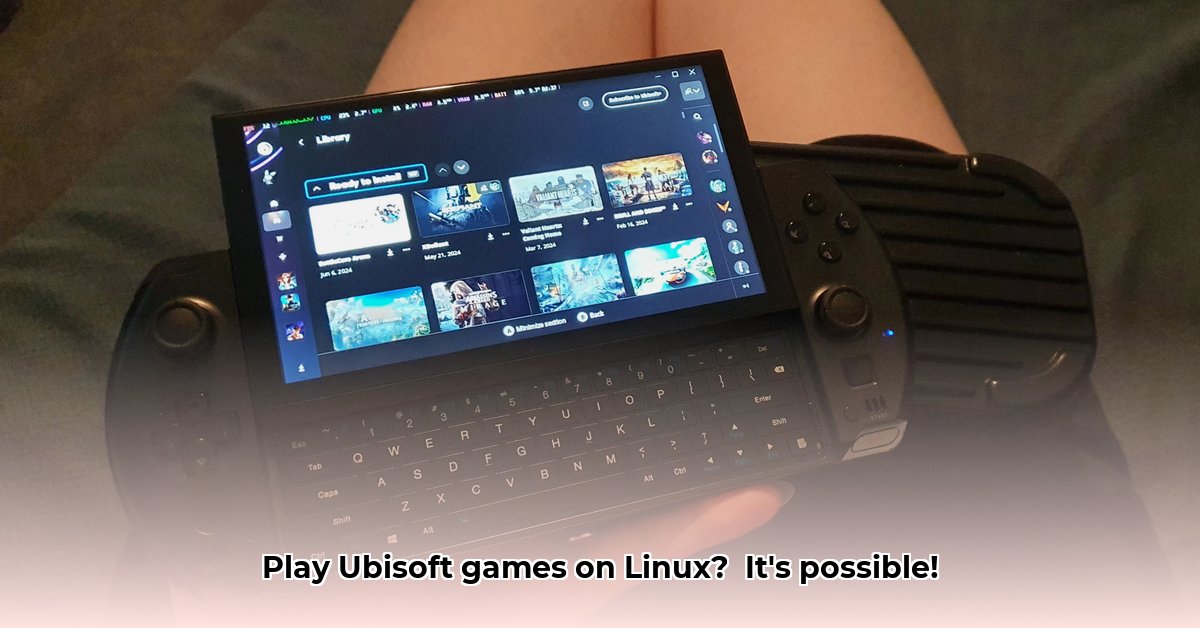
Want to play your favorite Ubisoft games on your Linux PC? This guide provides a step-by-step walkthrough to get Ubisoft Connect up and running, addressing common issues and offering optimization tips. Whether you're a seasoned Linux user or a newcomer, we'll equip you to enjoy your Ubisoft games without frustration.
Getting Ready: Prerequisites
Before installing Ubisoft Connect, ensure your system meets the minimum requirements for a smooth gaming experience.
Wine or Proton: You need a compatibility layer. Wine translates Windows applications to run on Linux, while Proton, integrated with Steam, often offers better performance for games. Proton is generally the recommended choice for gaming. You can install Wine through your distribution's package manager (e.g.,
aptfor Ubuntu/Debian,dnffor Fedora,pacmanfor Arch Linux). Proton is obtained by installing Steam.System Requirements: Ubisoft games vary in their demands. Aim for at least 8GB of RAM (more is better!), a modern processor, and a dedicated graphics card. Older hardware might struggle.
Linux Distribution: While the steps are similar across distributions, minor variations might exist. This guide provides general instructions applicable to popular distributions like Ubuntu, Fedora, and Pop!_OS.
Step-by-Step Installation: A Smooth Transition
Let's install Ubisoft Connect using Wine or Proton.
Download the Windows Installer: Visit the official Ubisoft website and download the Windows installer (.exe).
Install via Steam (Proton Recommended): The easiest and usually most effective method is installing via Steam. Download Steam, add Ubisoft Connect as a non-Steam game, and choose a Proton version (Proton Experimental or Proton GE, for example, are often good choices). This allows Proton to handle the compatibility.
Install via Wine (Alternative): If not using Steam, use Wine to run the downloaded .exe. Right-click the .exe and select "Open with Wine." The installer should begin; follow its instructions.
Log In: After installation, launch Ubisoft Connect and log in using your Ubisoft account credentials.
Install Games: Browse your game library and install the games you want to play. Remember to check the game's individual system requirements.
Troubleshooting: Addressing Common Hiccups
Here's how to address common problems:
Game Crashes: This often relates to system resources, driver issues, or incompatibility. Update your graphics drivers and ensure your system meets the game's requirements. Experimenting with different Proton versions can dramatically improve stability. Checking the game's individual configuration files can help locate additional stability issues. Community forums (like the ones linked at the end) are great troubleshooting resources.
Poor Performance: Optimize by adjusting graphics settings within the game, using tools like DXVK (DirectX to Vulkan translation), or tweaking Wine/Proton settings. Lowering graphical details can significantly boost performance.
Installation Errors: Check your Wine or Proton installation and its dependencies. Re-download the installer to rule out file corruption. Consult online resources for specific error codes.
Optimization: Fine-tuning for Peak Performance
For enhanced performance, consider these optional tweaks:
Proton GE: This enhanced version of Proton often improves compatibility and performance.
DXVK: DXVK translates DirectX calls to Vulkan, which can boost performance on some hardware.
Wine Configuration: Advanced users can refine Wine's settings (via
winecfg), but proceed cautiously as incorrect settings can cause problems. This is generally only recommended for users very familiar with Wine configuration.
Different Linux Distributions: A Quick Note
While the process is largely the same, minor differences exist:
| Distribution | Package Manager | Notes |
|---|---|---|
| Ubuntu | apt | Generally straightforward. |
| Fedora | dnf | Similar to Ubuntu. |
| Pop!_OS | apt | Similar to Ubuntu. |
| Arch Linux | pacman | Arch users might utilize the AUR (Arch User Repository) for additional tools and tweaks. |
Conclusion: Game On!
Successfully installing and optimizing Ubisoft Connect on Linux requires patience and occasional troubleshooting. Leverage community resources for solutions to problems not covered here. Happy gaming!
[1]:(https://www.gamingonlinux.com/) (Example of a relevant community resource - Always verify links before publication)
[2]:(https://www.protondb.com/) (Another relevant example - Always verify links before publication)
⭐⭐⭐⭐☆ (4.8)
Download via Link 1
Download via Link 2
Last updated: Friday, May 02, 2025